
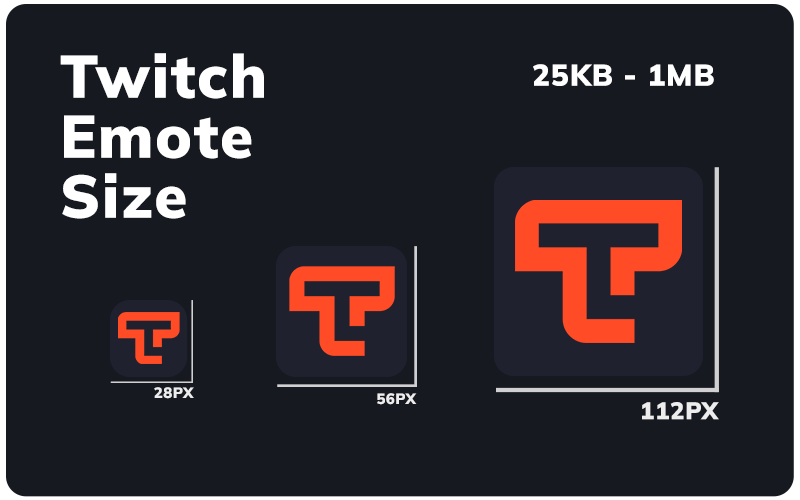
Twitch requires emotes to be uploaded in three sizes: 28×28, 56×56, and 112×112 pixels. All three must be PNG files with a transparent background. The file size limit is 1 MB per emote, though in practice most emotes are well under 100 KB.
Twitch uses these three sizes to serve the right resolution depending on the viewer’s screen and display settings. You need to supply all three at upload, Twitch does not resize them automatically. If you already have your artwork ready and just need to resize it, you can resize your emote for free using our Twitch emote resizer. Otherwise, read on for the full requirements.
Twitch Emote Size Requirements
These are the exact dimensions Twitch expects when you upload an emote through the Creator Dashboard:
Important: The 112×112 version is the most important one to get right. Work at 112×112 first, then scale down to create the 56×56 and 28×28 versions. Scaling up from a smaller file almost always produces a blurry result.
What Each Size Is Actually Used For
A lot of guides list the three sizes without explaining why they exist. Here is what Twitch does with each one:
28×28 – Default Chat View
This is the size most viewers see in a standard Twitch chat window. It is small, so your emote needs to read clearly at this scale. Avoid fine details, thin lines, or small text because they will disappear entirely at 28×28.
56×56 – Standard Resolution Display
Used on higher resolution monitors or when viewers zoom the chat panel. This is effectively the middle ground version and gets more display time than people expect.
112×112 – High Resolution and Emote Picker
This version appears in the emote picker when a viewer is browsing available emotes. It is also used on retina displays and in any context where Twitch renders a larger preview. Since this is the first impression viewers get when selecting an emote, quality here matters more than any other size.
Designer tip
Upload your profile picture at 800×800 even though Twitch displays it at 256px — it stays sharp after compression across all devices.
File Format and Upload Requirements
Getting the dimensions right is only half the job. Twitch also has specific requirements around format, transparency, and file size:
- Format: PNG only. Twitch does not accept JPEG, WebP, or other formats for standard static emotes.
- Transparent background: Required. Emotes sit inside chat on various background colours, so a solid background will look wrong for most viewers.
- File size: Maximum 1 MB per emote. Most well-exported PNGs are under 50 KB — file size is rarely a problem unless your emote has unusual colour complexity.
- Colour mode: RGB or RGBA. CMYK will not display correctly.
- Square canvas: All three sizes must be exactly square. Non-square canvases will be rejected.
If you are working in Photoshop or Illustrator, export using Export As (not Save for Web) and make sure PNG-24 is selected with transparency enabled.
Animated Twitch Emote Sizes
Animated emotes are available to Twitch Affiliates and Partners. The size requirements are slightly different:
- Format: GIF or APNG (animated PNG).
- Dimensions: 112×112 px. Unlike static emotes, Twitch only requires one size for animated emotes.
- File size: Maximum 1 MB. Animated files can grow quickly — aim for 8 to 15 frames for a smooth loop that stays well under the limit.
Frame rate: Twitch recommends keeping animated emotes between 3 and 30 frames per second.
BTTV, FFZ, and 7TV Emote Sizes
Third-party emote services have their own size requirements, which differ slightly from Twitch’s native system:
These platforms are viewer-side so they require viewers to install a browser extension. If you are creating emotes for BTTV or FFZ, always check their current documentation as limits occasionally change.
How to Create Your Emote at the Correct Size
The most common mistake creators make is designing at the wrong canvas size and trying to fix it afterwards. Here is the right workflow:
The Right Way to Prepare Emote Files
Step 1: Design at 112×112 px, or at a higher resolution like 512×512 for detailed illustrations, then export at 112×112.
Step 2: Export your 112×112 PNG first. Check it looks sharp and the details read clearly.
Step 3: Scale down to 56×56 and export. Check readability at this size.Step 4: Scale down to 28×28 and export. At this size, only the core silhouette of your emote should matter. If it looks unrecognisable, simplify the design.
Already Have an Emote at the Wrong Size?
If your artwork already exists but is not at the right dimensions, you can use our free Twitch emote resizer to generate all three sizes instantly. Upload your image and it outputs 28×28, 56×56, and 112×112 files ready to upload.
Common Design Mistakes at Small Sizes
- Text inside emotes almost never reads at 28×28. Keep text minimal or remove it entirely.
- Thin outlines disappear at small sizes. Use thicker strokes — at least 2px at 112×112 scale.
- Too many colours or complex gradients create noise at small sizes. Simplify where possible.
- Low contrast details vanish against both light and dark chat backgrounds. Test on both before uploading.
Why Twitch Rejects Emotes (and How to Avoid It)
Twitch reviews every emote before it goes live. Most rejections come down to a small number of consistent issues:
- Incorrect dimensions: Uploading at the wrong size, or uploading only one size instead of all three, is the most common cause of rejection.
- No transparent background: A solid white or dark background will almost always be rejected. Export with transparency enabled.
- Too much empty space: Twitch expects the emote to fill the canvas. Excessive padding around the artwork makes the emote look smaller in chat and is flagged during review.
- Low image quality: Blurry, pixelated, or heavily compressed images are rejected. Always start from a high-resolution source.
- Content guidelines: Twitch has strict rules around copyright, nudity, hate symbols, and real people. Even technically perfect emotes can be rejected if the content violates their policies.
Twitch typically reviews emotes within 48 hours, though this can occasionally take longer. If an emote is rejected, the rejection notice will usually specify the reason.
Need to resize your emote?
Once you have your artwork ready, our free Twitch emote resizer will generate all three required sizes from a single upload. No account needed.
Frequently Asked Questions
What size should a Twitch emote be?
Twitch requires three sizes: 28×28, 56×56, and 112×112 pixels. All three must be uploaded together as PNG files with a transparent background. You cannot upload just one size and expect Twitch to generate the others automatically.
What are the Twitch emote size requirements in 2026?
The requirements have not changed significantly from previous years. You need three PNG files: 28×28, 56×56, and 112×112 pixels. Each must have a transparent background and be under 1 MB. For animated emotes, upload a single GIF or APNG at 112×112.
Does Twitch resize emotes automatically?
No. Twitch requires you to upload all three sizes manually. If you only upload one size, the upload will fail or the emote will not display correctly at other sizes. Use an emote resizer tool to generate all three sizes from your original artwork before uploading.
What is the difference between the 28×28, 56×56, and 112×112 sizes?
Each size serves a different display context. The 28×28 version is what viewers see in the default chat view. The 56×56 is served on higher resolution screens or zoomed chat windows. The 112×112 appears in the emote picker and on retina displays. All three need to look intentional and legible at their respective sizes.
Can I just upload the 112×112 size?
No. Twitch requires all three sizes to be uploaded at once. The upload form has separate fields for each dimension. You must provide 28×28, 56×56, and 112×112 versions to complete the upload successfully.
What is the Twitch emote file size limit?
Each emote file must be under 1 MB. In practice, a well-exported static PNG emote is usually between 5 KB and 50 KB. Animated GIF emotes can be larger but should still stay under 1 MB, which means keeping your frame count and animation complexity reasonable.
What format do Twitch emotes need to be?
Static emotes must be PNG. Animated emotes can be GIF or APNG. Twitch does not accept JPEG, WebP, SVG, or other formats. If you are working in a different format, convert to PNG before uploading.
Do BTTV emotes have different size requirements?
Yes. BetterTTV (BTTV) allows emotes up to 128×128 pixels and accepts both GIF and PNG. Unlike Twitch, BTTV only requires one file rather than three separate sizes. FrankerFaceZ (FFZ) has similar requirements. Always check the platform’s current documentation before uploading, as these limits can change.
How do I resize an emote to Twitch sizes?
You have a few options. In Photoshop or similar software, use Image Size to resize to each of the three dimensions, then export each as a PNG with transparency. The faster option is to use our free Twitch emote resizer tool which outputs all three sizes from a single upload in seconds.
What resolution should I design my emote at before exporting?
Design at 112×112 pixels or higher. Many artists work at 512×512 or 1024×1024 and export down. Never design at 28×28 and scale up, you will get a blurry result at larger sizes. Starting large and scaling down preserves sharpness across all three required sizes.
How to get Twitch to use the 56×56 emote size instead of 28×28?
Twitch automatically selects the size based on the viewer’s display and browser settings. You cannot control which version a viewer sees, that is handled on Twitch’s end. The best you can do is ensure all three sizes look sharp and clear at their respective resolutions.
Ready to Upload Your Emote?
If you have your artwork prepared, the next step is getting all three sizes sorted. Our emote resizer does this in one step:
Head to the Twitch emote resizer, upload your image, and download the 28×28, 56×56, and 112×112 files ready to go. No account, no cost.
With your emotes sized, finishing the look is easy using a coordinated set of Twitch overlays. For a full breakdown of Twitch image dimensions beyond emotes, see our Twitch graphic sizes guide covering banners, overlays, panels, and more.